Double-click the .tar.gz archive to extract it, then double-click the
pfodProxy app. macOS will block it and show the
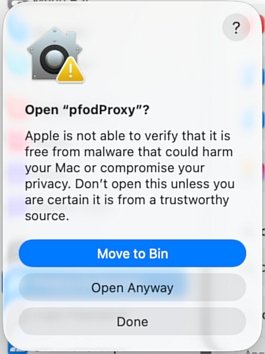
"pfodProxy" Not Opened alert.
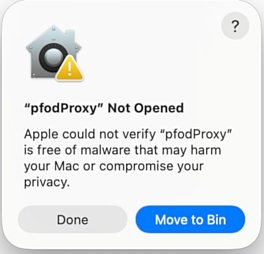
Because pfodProxy is downloaded from outside the Mac App Store, macOS Gatekeeper blocks it on the first launch. You only need to do this once. After that, double-clicking pfodProxy in Finder will start it normally and run in a minimized terminal window.
Double-click the .tar.gz archive to extract it, then double-click the
pfodProxy app. macOS will block it and show the
"pfodProxy" Not Opened alert.
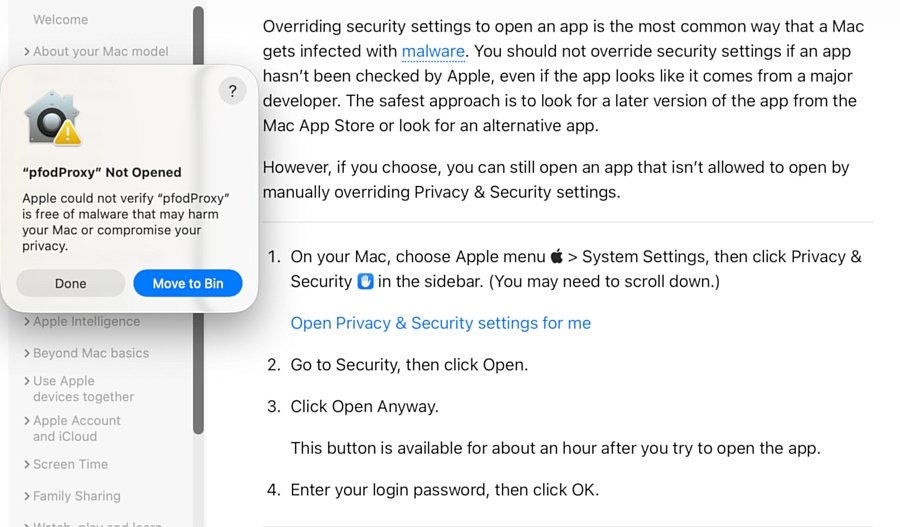
Optionally click the ? button in the "pfodProxy" Not Opened alert to open the Mac User Guide, which explains how to allow the app through Privacy & Security settings. When finished, click Done to dismiss the alert.
Click Done to dismiss the alert (if you haven't already), then open System Settings (Apple menu, top-left of screen → System Settings), then click Privacy & Security in the sidebar. Scroll down to the Security section. The message "pfodProxy" was blocked to protect your Mac only appears here after Done was clicked — click Open Anyway.
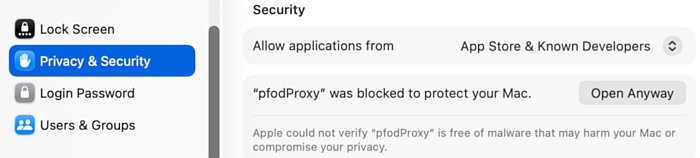
macOS shows one more confirmation dialog. Click Open Anyway.
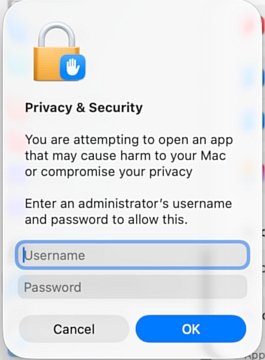
Enter your Mac administrator Username and Password, then click OK.
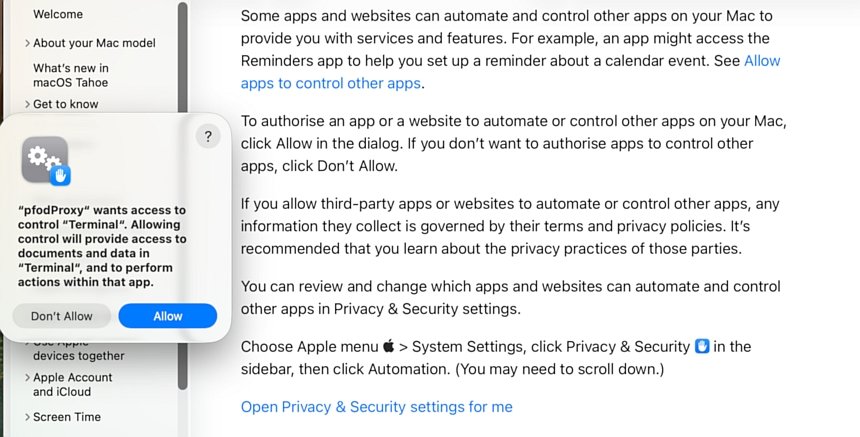
macOS asks whether pfodProxy may control Terminal (needed to open a Terminal window to start pfodProxy). Click Allow.