|
Home
| pfodApps/pfodDevices
| WebStringTemplates
| Java/J2EE
| Unix
| Torches
| Superannuation
| CRPS Treatment
|
| About
Us
|
|
|
Solar/Battery/EV/HW Forecast, Moniting and Control with an ESP32
|
by Matthew Ford 15th Oct 2026 (originally posted 15th
Oct 2026)
© Forward Computing and Control Pty. Ltd. NSW
Australia
All rights reserved.
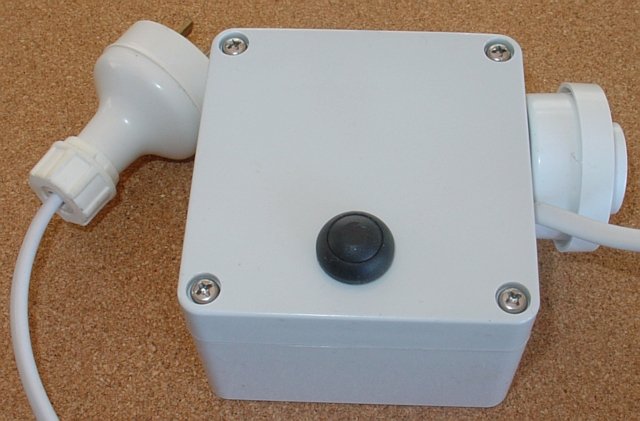
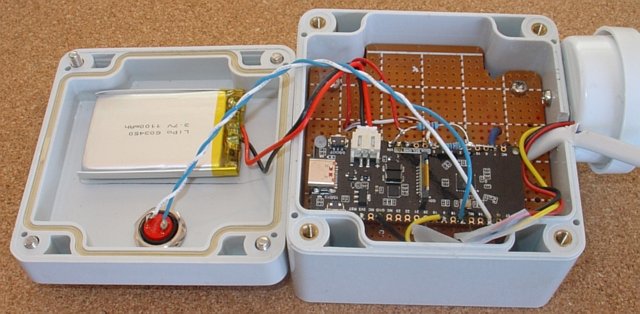
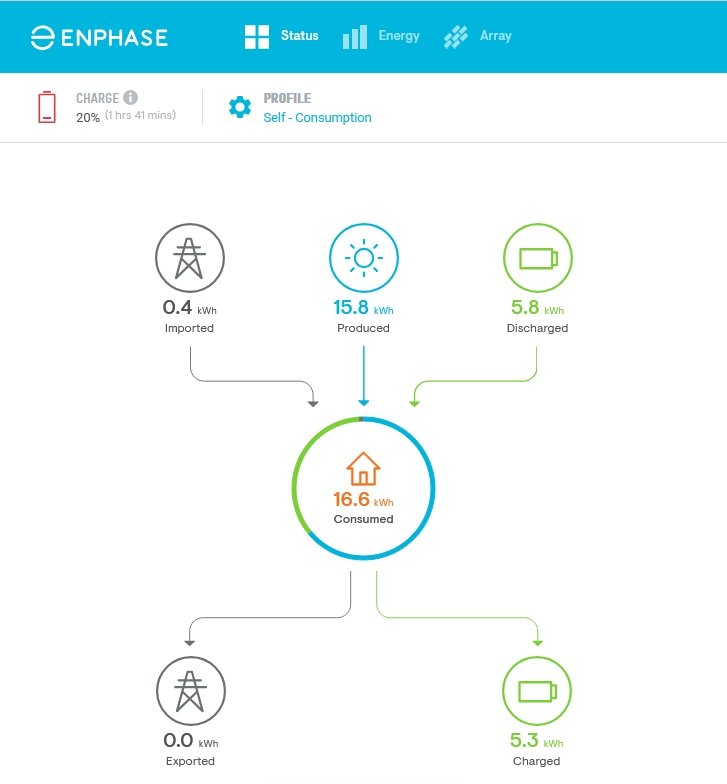
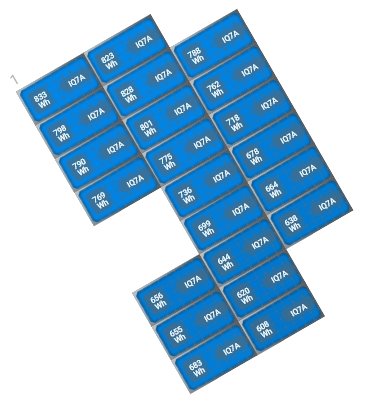
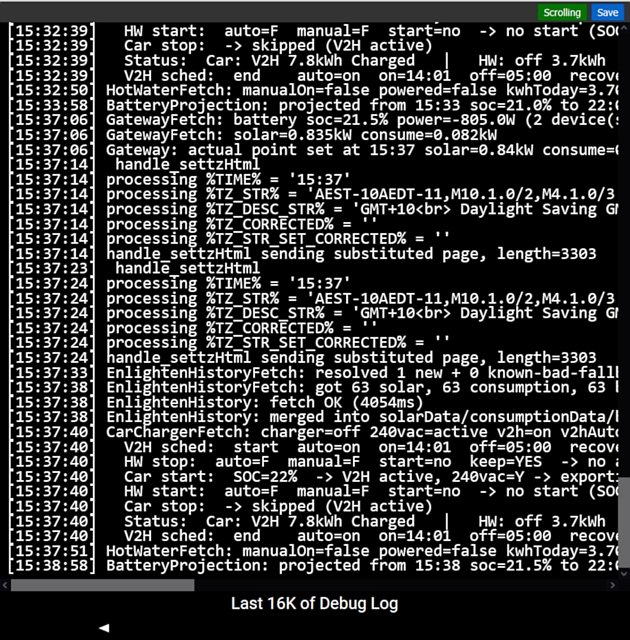
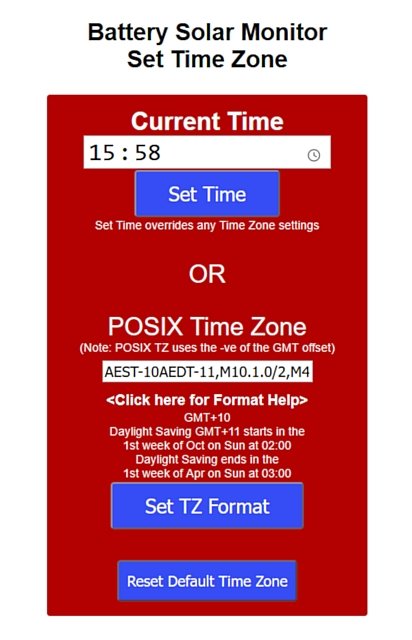
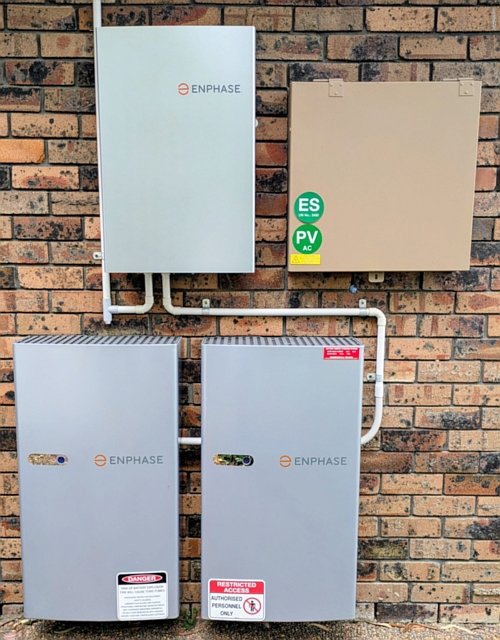
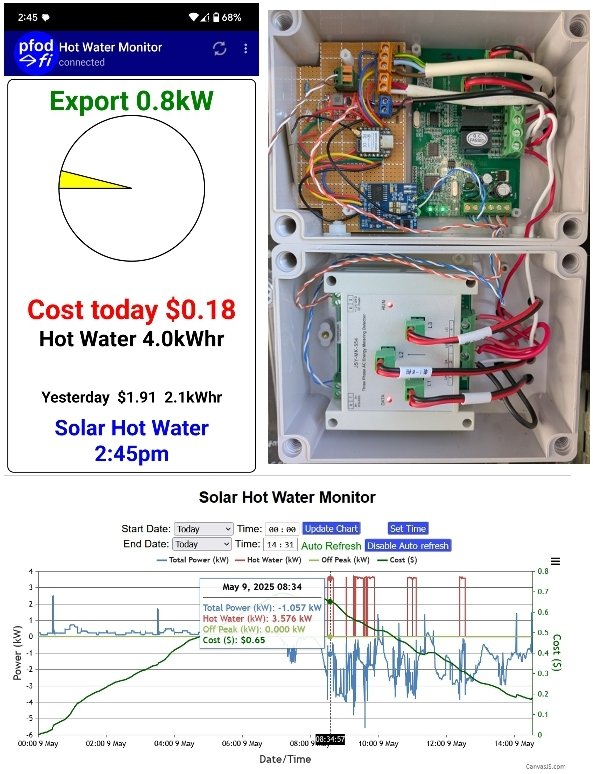
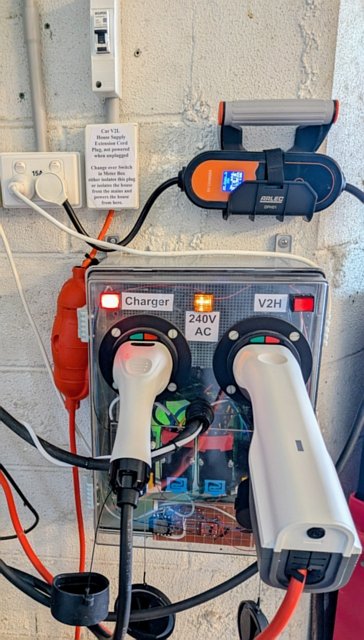
This system uses an ESP32 to monitor and control three existing
control house power systems:-
An Enphase 9kW (7.5kW effective)
solar array and 10kWh battery (8.35kWh actual)
A Solar charged 60
gal (272 ltr) Hot Water tank (~13kWh)
A Hyundai Inster EV (49kWh)
charge / discharge controller with 3.6kW V2L
The house is open plan and uses as 5.8kW AC unit for heating and cooling the main rooms or 2kW room heater for the bedroom.
For forecasting, the ESP32 downloads the forecast Global Tilted Solar Irradiance from Open-Meteo, adjusts for local shading and combines that with the 5 day average 15min consumption to give a forecast Enphase Battery State-Of-Charge % (SOC) for today.
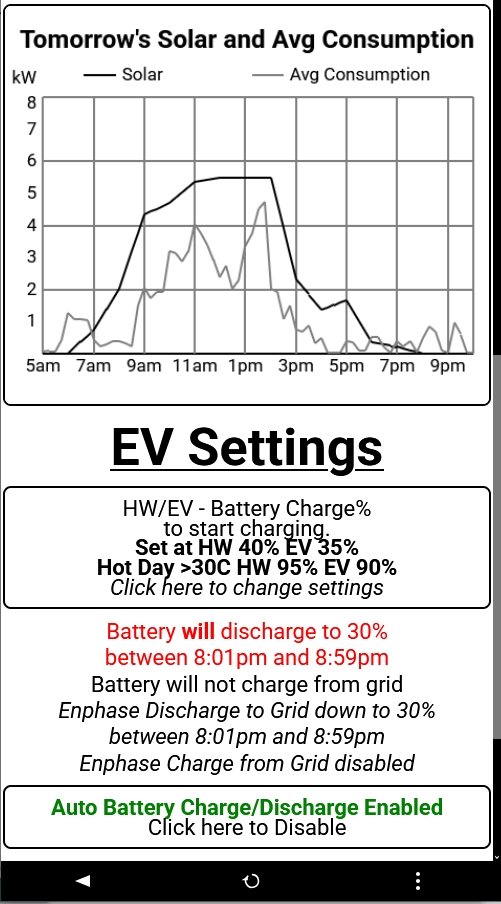
For today and tomorrow it shows the forecast Solar generation versus the 5 day average consumption. Using this data, adjustments can be made to the HW/EV charging and the discharge of the Enphase battery into the grid to minimise the electricity costs.
The display is via pfodWeb.html on any browser PC, Mac, Linux, Android, iPhone. Claude Code AI was used to create the plots and data structures handling and the various connections to collect the data and control the connected devices. A separate python script was created by Claude Code to process the historical solar irradiance against Enphase's historical solar array generation in order to determine the modifications needed to the forecast solar irradiance to allow for site tree shading. pfodWeb.html was also written by Claude Code.
This project also outlines how to use an AI code assistant to modify the site shading for a different site and to change the code to access a different solar/battery system.
Each of the three existing systems has their own control which can override the ESP32's control if required or in case of failures.
1 x DFRobot FireBeetle 2 ESP32 – E SKU:
DFR0654 US$8.90 or other ESP32 micro with 4Meg and build in
battery charger and Vin pin
1 x LiPo battery 3.7V 1100mAh 54mm x
34mm or smaller with 2-pin JST-PH connector e.g. Core-Electronics
~US$5.70
1 x 3v3 Buzzer e.g. Jaycar
Dual Sound Piezo Buzzer 1-13VDC ~US$6.20
1 x Momentary Push
Button e.g. Jaycar
IP67 Rated Dome Pushbutton Switch Black ~US$3.10
1 x 3K3
resistor e.g. Jaycar
3.3k Ohm 0.5 Watt Metal Film Resistors - Pack of 8 ~US$0.55
1
x 2K2 resistor e.g. Jaycar
2.2k Ohm 0.5 Watt Metal Film Resistors - Pack of 8 ~US$0.55
1
x USB small power adaptor, e.g. Sparkfun
SKU: TOL-15311 ~US$9.50
1 x enclosure, e.g. Jaycar
Sealed Polycarbonate Enclosure 82 x 80 x 55mm ~US$9.50
1 x
short length Main power cord and plug
1 x vero board e.g. Jaycar
Universal Pre-Punched Experimenters Board – Small
~US$3.70
3 x 3mm x 15mm screws e.g. Jaycar
M3 x 15mm Steel Screws - Pack of 25 ~US$2.20
2 x 12mm nylon
spacers e.g. Jaycar
M3 x 12mm Tapped Nylon Spacers - Pack of 25 ~US$6.20 (drill out
thread)
Double Sided Mounting Tape e.g. Scotch
Mount 13mm x 1.9m Double-Sided Mounting Tape ~US$5.00
hook up
wire e.g. Jaycar
Hook-Up Wire Pack - 2 metres each ~US$3.70
cable ties e.g.
Bunnings
Crescent 100 x 2.5mm Black Cable Ties - 25 Pack ~US$0.85
2m
Nylon Screws / standoffs e.g. DFRobot
White Nylon Screw and Mounting Kit -M2 ~US9.90
BatterySolarMonitor.zip
– all the code and docs, both Arduino and python.
Arduino
IDE V2.3.6
arduino-littlefs-upload
to upload the /data files
ESP32
board support V3.3.12
pfodParser
library – Install from Arduino library manager of from the
zip
file. This includes the pfodWeb.html client to display the plots
and menu buttons.
ESPAutoWiFiConfig
library – Install from Arduino library manager of from the zip
file.
SafeString
library – Install from Arduino library manager of from the zip
file.
DebouncedSwitch
library – Download the DebouncedSwitch.zip
file and install via Arduino menu Sketch → Include Library →
Add Zip file.
ArduinoJson
library V7.4.3 – Install from Arduino library manager
Other Parts Lists:-
Hot
Water Controller
Inster
EV Charger and V2L controller
The aim of the project is to reduce grid dependence as much as possible. From early Spring to late Autumn the system essentially draws no power from the grid.
The detailed aims, in order of priority are:-
No power drawn
from the grid between 2pm and 8pm. The electricity plan for this
house makes that power very expensive. E.g. 2kW (a hotplate) on just
once during the month for 30mins during that time increase the
monthly bill by A$14.00 (see Demand
Charges). Outside those times 2kW for 30min cost A$0.12
Don't
Export Power back to the Grid. That is store/use all the power
that the solar generates. Exporting to the grid pays $0.02 to $0.08,
imported power costs 3 to 10 time as much.
Export Excess Solar
to the grid between 8pm and 9pm. Between 4pm and 9pm, exports to
the grid are paid at $0.082/kWh. The Demand Tariff loading stops at
8pm so it is safe to export any excess still in the Enphase battery
between 8pm and 9pm, provide the next days forecast if for excess
Solar production over consumption.
Prioritise Charging the EV
over heating the Hot Water. There are two reasons for this:- One,
the EV is used to power the house between 2pm and 8pm (actually
usually between 2pm and 7am) and the EV is used for shopping etc.
Secondly the Hot Water can be manually switched over from Solar to
Off-Peak. The Off-Peak electricity rate for hot water is $0.14, 60%
of the house power cost and the tank will last a couple of days use
without being heated.
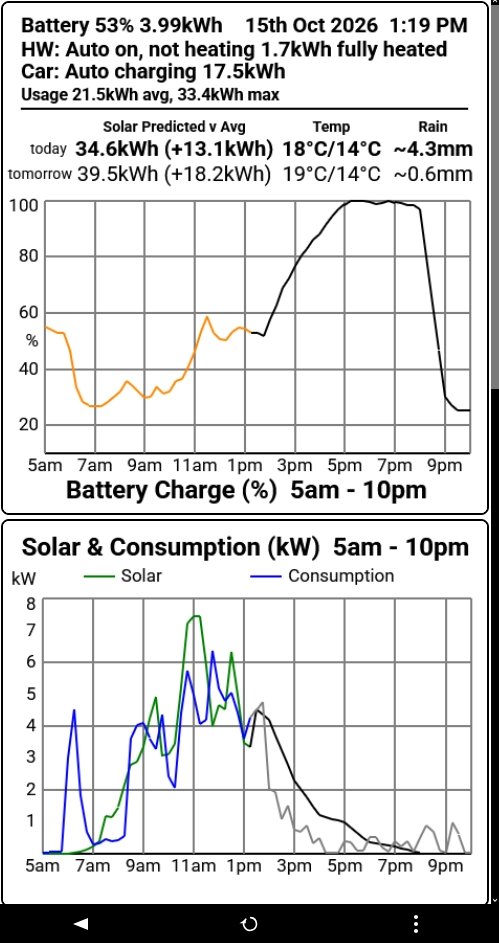
This system uses an ESP32 to collect the Solar Irradiation forecast (and forecast temperature and rain), adjusting the forecast for tree and hill shading, forecasts the expected solar kWh for today and tomorrow, compares that to the average consumption for the last 5 days and track the forecast and actual solar production, house consumption and Enphase State-Of-Charge (SOC%). See a detailed description of all the code functions in esp32_control_structure.md

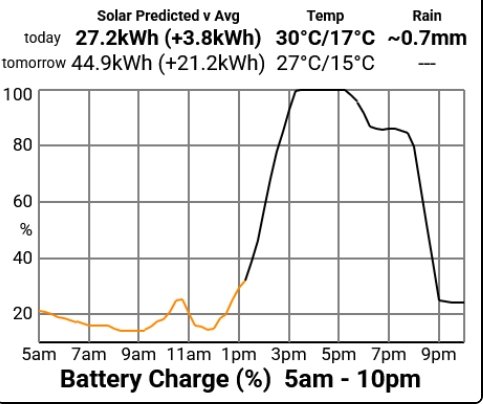
Using that forecast and the average consumption over the last 5 days, the ESP32 plots the expected Enphase Battery State Of Charge (SOC) % (black line) and updates that as the day progresses and new actual consumption and solar production figures are available (orange line).
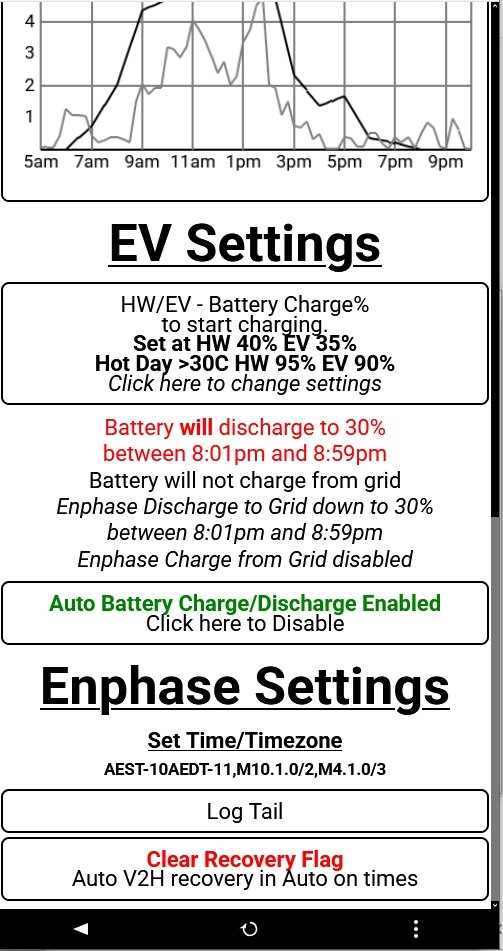
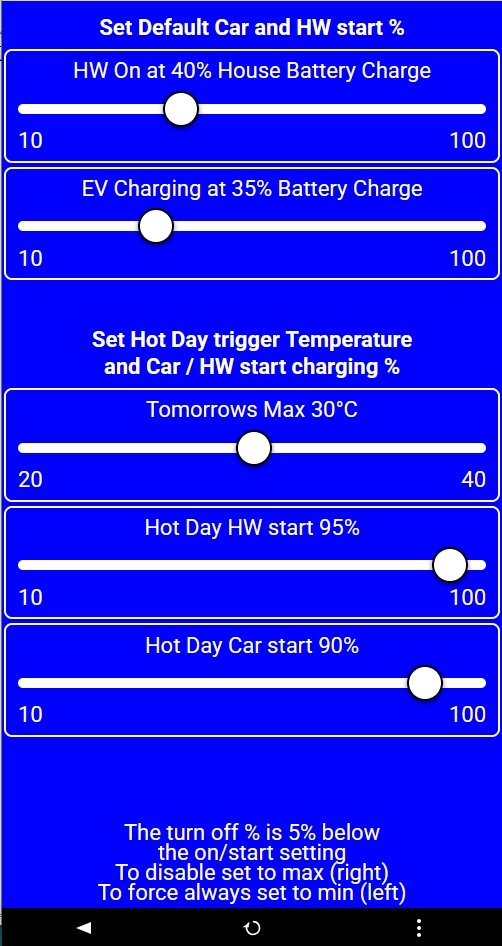
The ESP32 monitors the Enphase batteries's charge % (SOC%) and when it reached 35%, the ESP32 turns on the EV charging. When it reaches 40%, the ESP32 turns on the hot water element. They are turned off when the SOC% drop to 5% below the turn on %, i.e. 30% for EV and 35% for how water. See the wiggly Orange line above in the Battery Charge graph which show the EV charger turning on and off. These turn on %'s can be set by two sliders in a sub-menu opened from the HW/EV Battery Charge % button. Setting the HW turn on % higher then the EV %, ensures the EV is preferentially charged first when there is power in the house battery. If the solar kW exceeds the EV charge kW + house usage (~4.5kW) the battery SOC% will rise while charging the EV and when it reaches 40% the HW element will be turned on.
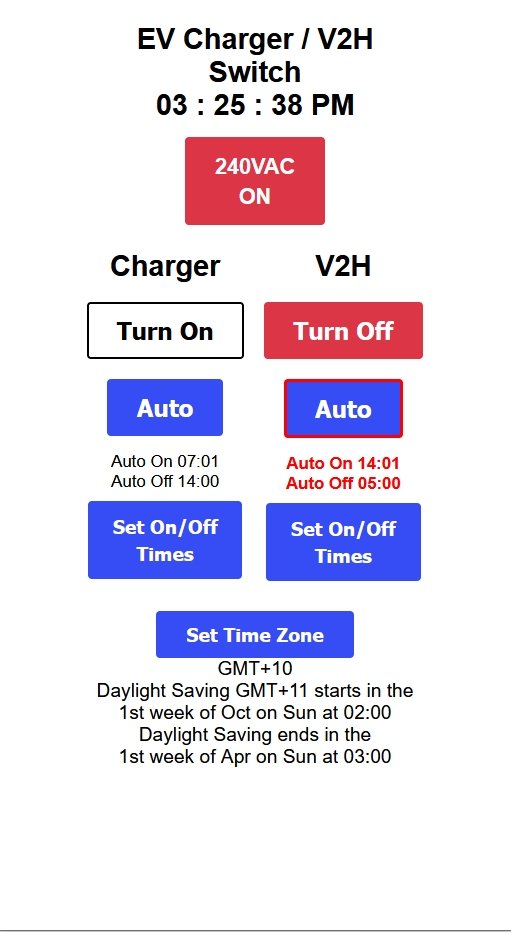
Between 2pm and 8pm when there is are Demand Charges for using electricity from the grid, the EV Charge/V2H controller automatically switches to V2H mode to power almost all the house from the EV. The 3phase AC, the hot water and the oven are excluded from the V2H circuit. They draw their power from the Enphase battery or if that is empty, from the grid.
Typically in winter, the 3phase AC will be run from the Enphase battery between 2pm and 8pm to heat the house. If the AC is running continuously it can empty the Enphase battery in 1hr, but typically it cycles on/off about 15mins each hour. The ESP32 includes an alarm that sounds, between 2pm and 8pm, if the Enphase battery SOC% falls below 15% (10% is the minimum at which point it stops supplying power to the house). When the alarm sounds you have the choice of either accepting the demand charges or turning off the AC and using a room heater instead, which can be powered from the EV V2H circuit. The Enphase website has a setting to force the battery to charge up from the grid between given times. Typically on cold winter days this would be used to ensure the Enphase battery was fully charged at 2pm. This is still a manual process at the moment.
The alarm will also sound if the power goes off completely, i.e. Enphase battery empty, no grid power (blackout) and EV V2H not running. This warns you to switch to the EV to V2H to keep the refrigerator running.
Once the Enphase battery reaches 100% SOC any further excess solar kW over the house consumption is fed back to the grid for a small payment, $0.02 to $0.04 / kWh. The system tries to avoid that by charging the EV and heating the hot water. If the power is fed back to the grid between 2pm and 9pm the payment is $0.08 / kWh. Still not much but better. To take advantage of that higher payment, the ESP32 control system automatically enables the Enphase discharge to grid down to 25% SOC, between 8pm and 9pm, if the forecast for the following day is for excess solar production over average consumption. Usually the house is run on the EV V2H over night and the remaining Enphase battery charge is used in the morning until the sun get high enough to power the house and re-charge the Enphase battery.
If this discharge is enabled than it shows on the forecast Enphase battery SOC graph
This can automatic control can be disabled from the ESP32 menu, if necessary.

Note: This is a work in progress. These settings will be
modified as more experience is gained with the system
There
are a number of factors that restrict discharging excess solar to the
grid in the evening:-
a) Tomorrow's excess solar is <5kWh. In
that case keep the battery charge to assist with tomorrow's demand
b)
Car charge today was <10kWh. Keep the battery charge to recharge
the car battery tomorrow morning after the car battery was used
overnight.
c) Max temp tomorrow is >30. In that case keep the
battery charge to run the AC tomorrow. Also set the system to charge
the house battery to 100% before 2pm and increase the Car start
charge % to 90% and the HW start heating % to 95% to prioritise the
house battery for AC use
d) Max temp tomorrow is <18. In that
case keep the battery charge to run the AC heating.
Powering the house from the EV is switched on via the Inster EV Charger and V2L controller from 2pm and left running the house until the morning. However the EV V2L outlet can only supply 3.6kW. Trying to draw any more than that will cause the EV to automatically turn off its V2L output. When that happens the house circuit automatically switches back to Enphase Battery / Grid power. Typically this happens someone has a heater running and decides to boil a jug as well (2 x 2.4kW > 3.6kW).
The ESP32 detects when this happens, V2H selected but AC output off, and automatically starts a recovery sequence. The ESP32 first turns the V2H off and then 5mins later checks if the current house consumption is <3kW and if so re-enables the V2H from the EV. This works well in practice because the jug boils in a couple of minutes. There is a 'V2H recovery flag' in the ESP32 file system that keeps track that a recovery is required after the V2H is turned off. There is a button at the bottom of the menu that clears this flag if it gets out of sync or if you don't want the auto-recover to occur.
The forecast solar irrandiance is updated from Open-meteo every 30mins. This forecast is base on the site's location and the orientation and angle of the solar array, but does not take into account any local shading. The ESP32 uses two pre-prepared files, shade_grid.csv and morning_floor.csv to adjust the Open-meteo forecast to take into account local site shading. See solar_shading_model.md for the how this is done for each sun position in the sky over the year.
The shade_grid.csv and morning_floor.csv files are generated by the quarterly_update.py program in the BatterySolarMonitorUpdate directory using the historical Open-meteo and Enphase data from previous years. See data_sources.md and solar_shading_model.md for the details. The quarterly_update.py should be run every 3 months to pickup the latest data and changes in tree growth.
To implement this forecaster for
your own site, you need to
a) update the site_settings.csv in the
BatterySolarMonitorUpdate
directory with your location,
timezone and address and passwords to your solar system.
b) remove
the ESP32 tasks for the controls your system does not have, e.g. EV /
Hot Water. The simple way to do this is to copy all the code to a
directory and ask an AI coding assintant to do that work
c) add
the access routines needed to pick up your site's historical and the
live solar generation, battery SOC % and house consumption. Again use
an AI coding assistant to do this work. First check yourself what is
available and from where. Then ask the AI to write a python program
to retrieve it. Then ask the AI to update the quarterly_update.py
program to use these data sources
to generated your site's shade_grid.csv and
morning_floor.csv files.
d)
finally, using the updated quarterly_update.py program
as a guide, ask the AI to update the ESP32 tasks to access the same
data.
Point the AI at the various .md files in BatterySolarMonitorUpdate/docs to give it the context for what it is trying to do.
You will want to remove/add/modify some of the buttons in the display menu. The pfodWeb.html client in the pfodParser library includes a Designer connection. See tutorials under Quick Start, on the pfodWeb page. Open the Designer, choose the board you are using and connect. Then load the existing design BatterySolarMonitor_menuJson.zip for the BatterySolarMonitor\menujson directory. That loads all the menus/sub-menus and charts used in this project. Modifying the menu buttons/labels is straight forward as is changing the text on the drawings. If you want to change the charts, ask you AI code assistant to do it. First get the AI to read the pfodAI-guide.md, pfodDwg_json-format.md and the pfodMenu_json-format.md AI guides from the pfodParser library's pfodParser\pfodWeb\docs directory.
For modifying the drawings/plots, insist the AI does NOT use python, instead you want the AI use a temporary node server and browser AI plug in so the AI can load the changes directly into the pfodWeb Designer for you to review. This is covered in pfodAI-guide.md, but AI assistants will use python by default, even when the guide says not to.
Finally once you are happy with how your display looks, re-genarate the menu/drawing/plot code from the designer and copy the classes over the existing classes in the BatterySolarMonitor. These generated class do not contain any of the logic need to run the system. They rely on the other sub-classes, ...App, to do that.
Pass the whole set of code, with the new display classes back to the AI assistant and ask it to fix up any miss-matches between the new display classes and the other code. NOTE: Tell the AI it must not touch the generated classes. All changes must be restricted to the other files.
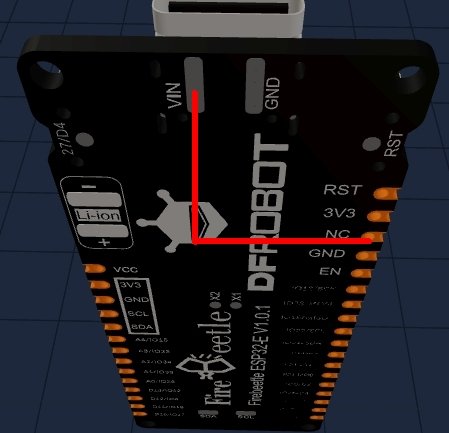
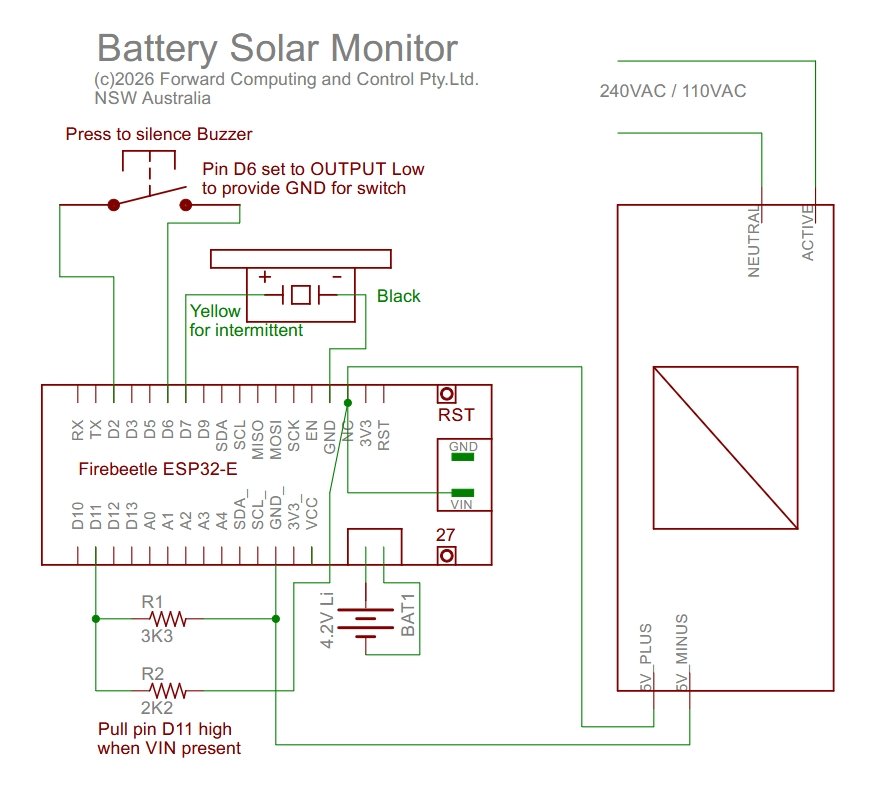
The construction is straight forward and only slightly different from the Mains Off Detector. This circuit uses an ESP32 board and due to circuit differences needs to have the USB supply +ve lead (anchored on the NC pin) wired to the VIN tab on the underside of the USB connector.
Install Arduino
IDE V2.3.6 or higher.
Install the
arduino-littlefs-upload
Install
the ESP32 board support following these
instructions. V3.3.12 was used here. Other versions will have
their own set of bugs.
Unzip BatterySolarMonitor.zip
and copy the BatterySolarMonitor directory to the Arduino sketch
directory.
Install the libraries listed under Parts List
above.
Choose your ESP32 board, with 4Meg flash. Choose 3Meg flash
/ 1Meg SPIFFS
Compile and flash the sketch. Then use Ctrl+Shift+P
and select Upload LittleFS to load the /data files.
The Dfrobot ESP32 -E led will flash, indicating it cannot connect to the local network. See ESPAutoWiFiConfig for how to set your networks SSID and password and static IP, from the ESP's AccessPoint webpage. If you use another ESP32 board you will need to adjust the int wifiConfigLedPin in BatterySolarMonitor.ino to suit. Again see ESPAutoWiFiConfig
The BatterySolarMonitor.ino is setup to serve pfodWeb.html
directly from the ESP32, so just type the ESP32's IP address in the
browser to connect and display the plots.
NOTE: use
http://<ipaddress> not https
This described how to build a Solar forecaster that is tailored for the local site's shading and how it control the EV charging and Hot Water heating from the stored energy in the Enphase house battery.
It also covered how to use an AI coding assistant to modify the solar forecast adjustments to suit a different site and how to modify the code to connect to a different solar/battery system.
AndroidTM is a trademark of Google Inc. For use of the Arduino name see http://arduino.cc/en/Main/FAQ
The General Purpose Android/Arduino Control App.
pfodDevice™ and pfodApp™ are trade marks of Forward Computing and Control Pty. Ltd.

Contact Forward Computing and Control by
©Copyright 1996-2024 Forward Computing and Control Pty. Ltd.
ACN 003 669 994
 (
(